
The fastest fixes for slow home Wi-Fi are to restart the router and modem, move the router to the middle of your home, switch to the 5 GHz band, and plug your heaviest users into Ethernet. Do those four before you spend any money.
Updated November 9, 2026.
I play a lot of games, so lag is the first thing I notice when a network is struggling. A video call or a movie can hide a weak connection for a while. A fast game can’t. That is why I treat Wi-Fi as a short list of small fixes in a sensible order, not one big purchase.
My call: what to do first and what to skip
Do fix 1 first. It takes about five minutes, costs nothing, and clears more everyday slowdowns than anything else on this list. Fix 2, moving the router, comes next. After that, wire anything that stays in one place, like a console or a desktop.
The most overrated fix here is changing your DNS (fix 8). It can make web pages start loading sooner, but it does not raise your download speed, and it gets pitched as a speed trick far more often than it should. Range extenders are my other skip, and I explain why in fix 9.
A 2-minute test before you change anything
Most people guess at the cause and start changing settings. This test tells you which group of fixes to try, and it only needs a phone and a free speed test app, such as Ookla Speedtest.
- Stand next to the router and run a speed test. Write down the download number.
- Walk to the room where the Wi-Fi feels slow and run the test again.
- If both numbers are low and well under the speed you pay for, the problem is the router or the plan. Start with fixes 1, 3, 4 and 5, then look at fix 10.
- If the number next to the router is good and the far room is poor, it is a coverage problem. Try fixes 2, 7 and 9.
- If both are fine but the connection still drags in the evening, the network is probably crowded. Try fixes 4 and 6.
I live in the Mountain West, where homes and lots tend to run big and the far bedroom can be a long way from the router. That makes the far-room number the one I trust most.
1. Restart Your Router and Modem (The Classic Power Cycle)
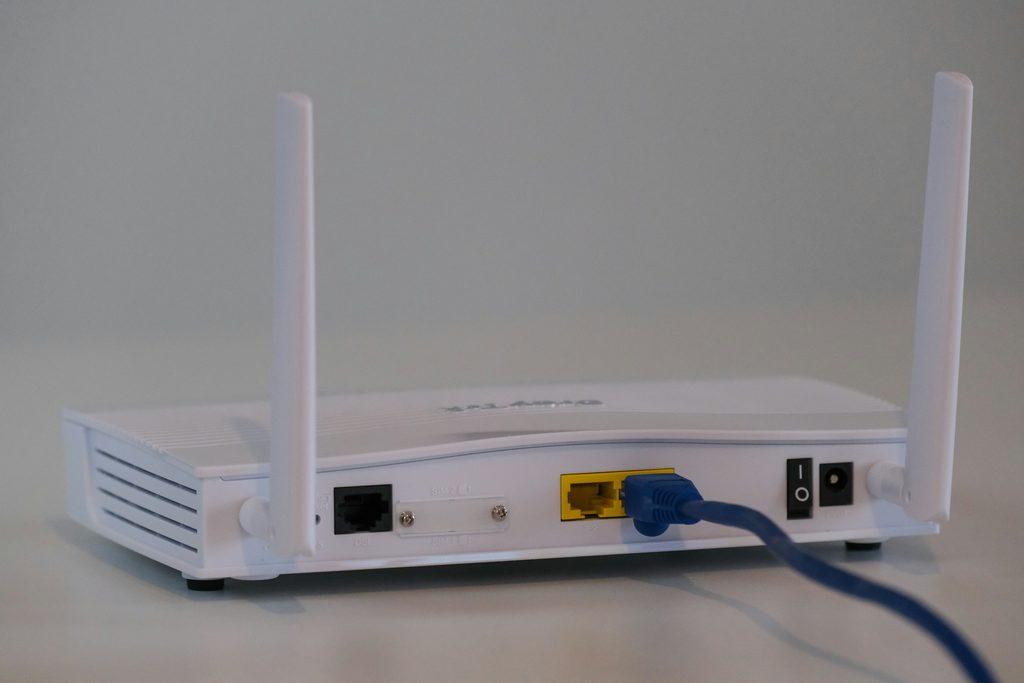
This is the fix I reach for first, every time. A router is a small computer that can run for months without a break, and it can get bogged down. A restart clears its temporary memory, drops stuck background tasks, and makes it sign in again with your Internet Service Provider (ISP). Plenty of times the slowdown is gone before the lights stop blinking.
If a restart helps but the slowdown comes back every few days, the router may be getting old. Our guide to the best routers for home networks shows what a newer one can do.
- How to do it: Unplug the power cords from both the modem and the router. Wait 30 to 60 seconds. Plug the modem back in first, wait for its online lights to settle, then plug the router back in.
- Check it worked: Run a speed test once the lights are steady.
- Best for: Slowdowns that started suddenly, or Wi-Fi that gets worse the longer the router has been on.
- Skip it if: The slow spot is always the same far room. A restart will not fix distance.
2. Move Your Router to the Middle of Your Home
Wi-Fi spreads out from the router in every direction, so where it sits matters more than most people expect. The cable from your provider often comes in at one corner of the house, and that is where the router ends up, in a basement, behind a TV or inside a cabinet. Walls, mirrors and appliances all weaken the signal before it reaches you.
I’d put the router on a shelf or desk in the open, near the middle of the house, about chest height or higher. If the modem can’t move, a long Ethernet cable between the modem and the router often can.
- How to do it: Move the router out into the open, away from thick concrete walls, large mirrors and metal appliances like the refrigerator.
- Check it worked: Walk through the main rooms with your phone and compare the signal bars, then repeat the far-room speed test.
- Best for: Homes where one end has a strong signal and the other end barely has any.
- Skip it if: The router already sits in the open near the middle and the weak room is still weak. Go to fix 7 or fix 9.
3. Switch from the 2.4 GHz Band to the 5 GHz (or 6 GHz) Band
Most modern routers send out more than one band. The 2.4 GHz band reaches farther and goes through walls better, but it is crowded. Neighbors’ routers, Bluetooth devices, microwaves and baby monitors all use it. The 5 GHz band is faster and quieter, though its range is shorter.
For gaming I want 5 GHz whenever the signal is decent. I keep 2.4 GHz for far rooms and for small gadgets like smart plugs, since many of them only connect on 2.4 GHz. A 6 GHz band exists too, but you need a Wi-Fi 6E or Wi-Fi 7 router and a device that supports it.
- How to do it: Open your router’s app or web page (the address is often printed on the bottom of the router). Look at the wireless settings. If both bands share one name, give the 5 GHz band its own name, then connect your phone, laptop and console to it.
- Check it worked: Run a speed test on the 5 GHz network in the same spot as your first test.
- Best for: Phones, laptops, consoles and TVs in the same room as the router or one room away.
- Skip it if: The device is far from the router or behind several walls. The 2.4 GHz band is often steadier there.
4. Change Your Wi-Fi Channel to Avoid Neighbor Congestion
If you live in an apartment building or a packed neighborhood, your router is sharing the same radio space with dozens of others. When too many networks use the same channel, you can get dropped packets and lag spikes, especially in the evening.
Many routers pick a channel on their own, and that is often fine. I’d try a manual change only after fixes 1 to 3 if evenings still feel slow.
- How to do it: Use a free Wi-Fi analyzer app on your phone or computer to see which channels are busy. On 2.4 GHz, the three channels that do not overlap are 1, 6 and 11, so pick the quietest of those. On 5 GHz, pick a channel with fewer networks on it. Then set it in your router settings.
- Check it worked: Look for more even speeds and fewer lag spikes during the busy evening hours.
- Best for: Apartments, condos and tight neighborhoods with a lot of nearby networks.
- Skip it if: You have few neighbors, or your router’s automatic setting already keeps things steady.
5. Update Your Router’s Firmware
Your router runs its own software, called firmware, and the maker sends out security patches and bug fixes for it. Old firmware can leave your network exposed and sometimes sluggish. It is a dull chore, but I like small settings jobs like this one, because they cost nothing and take a few minutes.
- How to do it: Open the router’s app or web page and look under System, Advanced or Administration for Firmware Update. Install anything waiting and let the router restart on its own. Don’t unplug it during the update.
- Check it worked: Open the status page and check that the firmware version and date match the newest release.
- Best for: Routers you never log into, and any router that has started acting up after months of steady use.
- Skip it if: Your router already updates itself. Just open the app once to confirm that it does.
6. Disconnect Ghost Devices Hogging Bandwidth

Smart speakers, cameras, old tablets and the phones in the junk drawer can all stay connected and quietly use bandwidth for background updates, cloud backups and constant check-ins. Open the device list once and you will likely find a few things you forgot about.
If you are not sure how much your household really needs, our page on the number of connected devices in a home can help you size things up.
- How to do it: Open your router’s app and find the Device List or Client Map. Remove or disconnect anything you do not recognize or no longer use. If you find a stranger on the list, change your Wi-Fi password. You will need to reconnect all your devices afterward.
- Check it worked: Read the list again and make sure only devices in use are connected.
- Best for: Homes with lots of smart gadgets, cameras and old devices that never got unplugged.
- Skip it if: You have only a few devices and know every one of them.
7. Hardwire Your Heaviest Devices With Ethernet
Wi-Fi is handy, but it is always at the mercy of walls and neighbors. A cable is not. A wired connection is usually steadier and closer to your plan speed, and it also frees up the wireless airtime for everyone else in the house.
This is the first thing I’d do for a game console. Lag is where a wireless connection shows its weak side. A smart TV, a desktop work computer and a set-top box that never move are good candidates too.
- How to do it: Run a Cat5e or Cat6 Ethernet cable from a LAN port on the back of the router to the Ethernet port on your device.
- Check it worked: The device settings will show a wired connection, and a speed test should land close to your plan speed.
- Best for: Game consoles, gaming PCs, desktop computers and TVs that stay in one spot.
- Skip it if: The device is a phone or a laptop you carry around, or the cable run is too long or too hard to hide.
8. Upgrade Your DNS Servers (Skip It for Raw Speed)
DNS is the phone book of the internet. It turns a website name into an address your device can use. Your ISP provides one by default, and a public one can sometimes answer a little faster, so a page may start loading sooner. It does not make downloads, streams or games run faster. That is why this is my pick for the most overrated fix.
If you want to try it, the addresses are simple. Google Public DNS uses 8.8.8.8 and 8.8.4.4, and the setup steps are on Google’s DNS page. Cloudflare uses 1.1.1.1 and 1.0.0.1, with directions at one.one.one.one.
- How to do it: Open your router’s internet settings and enter a primary and a secondary DNS address from one of the pairs above. You can also change DNS on a single device instead.
- Check it worked: Open a few sites you do not visit often and see whether they start loading a touch sooner.
- Best for: Pages that sit and wait for a second before they load, while speed tests look fine.
- Skip it if: Your problem is slow downloads, buffering or game lag. DNS will not help with those.
9. Try a Mesh Wi-Fi System in a Large Home
This is the fix that earns its keep in a big, multi-story house, or one with brick or plaster walls. One router can only reach so far. Range extenders look like the cheap answer, but many single-radio extenders can roughly halve the speed, because the same radio has to talk to your router and to your devices. I’d skip them for anything that matters.
A mesh system uses several units that work as one network. Systems like Eero and TP-Link Deco are easy to set up from a phone app, and our roundup of the best mesh Wi-Fi systems compares more of them. Put the main unit by the modem. Put each extra unit about halfway between the main one and the weak room, not inside the dead zone itself.
- How to do it: Replace the single router with a mesh kit, connect the main unit to your modem, and place the other units around the house.
- Check it worked: Check the signal and run a speed test in the rooms that used to be dead. They should now be close to the main unit’s area.
- Best for: Large, multi-story or dense-walled homes with rooms that stay weak even after you move the router.
- Skip it if: One router in the middle of a smaller home already covers it, or both of your test numbers were low. Coverage is not your problem then.
10. Call Your ISP and Check Your Plan Limits
Sometimes the bottleneck is not inside your home at all. It is the plan. If you run several 4K streams, work video calls and online games on an entry-level plan you signed up for years ago, you may have outgrown it. Our look at internet plans for gamers shows what faster tiers offer.
The 2-minute test tells you when to make this call. If a speed test next to the router, ideally over a cable, comes close to what you pay for and the house still lags, you need more plan. If it comes in far under, you need your provider to check the line.
- How to do it: Run a speed test next to your router. Compare the result with your monthly plan. If you want to call, use the script below.
- Check it worked: Compare the result with your billing tier, and note the number after any change the provider makes.
- Best for: Busy households where the speed test is fine next to the router, but many people are online at once. Also homes where fixes 1 through 7 did not help.
- Skip it if: The test next to the router matches your plan and only the far rooms are slow. That is a coverage problem, not a plan problem.
Here is what I’d say when you call:
- “I’m paying for a faster plan than the speed test next to my router shows. Can you see why?”
- “Can you check the signal on my line and tell me if my modem is too old for my plan?”
- “What faster plans are available at my address, and what would the monthly bill be?”
- “Can you send me the new price in writing before I change anything?”
My order if you only have one evening
- Restart the modem and router, then run the 2-minute test.
- Move the router to the middle of the home and test the far room again.
- Connect to 5 GHz and wire the console, desktop or TV.
- Clear out old devices and update the firmware.
- Still slow? Look at a mesh system for coverage or a faster plan for capacity.
Frequently asked questions about home Wi-Fi speed
Why is my Wi-Fi slow but my internet is fast?
Usually it means your plan is fine and the wireless part is the problem. Run the 2-minute test above. If the number next to the router is good and the far room is poor, the signal is not reaching that room. I’d move the router to the middle of the house first, then use 5 GHz close by and wire anything that stays put. If a dead room is still left, a mesh system is what I’d try next.
Does restarting the router really help?
Yes, often. A router can run for weeks without a break and slow down or lose its link to your provider. Unplug the modem and router, wait 30 to 60 seconds, and plug the modem in first. I do this before anything else. If the same room is slow again the next day, a restart is not the answer and I’d look at where the router sits.
Is 5 GHz faster than 2.4 GHz?
Usually yes, up close. The 5 GHz band carries more data and has less interference from neighbors and gadgets, but its signal fades faster through walls. I use 5 GHz for gaming and streaming near the router and leave 2.4 GHz for far rooms and small smart-home gadgets.
Do Wi-Fi extenders slow down internet?
Many single-radio extenders can roughly halve the speed on the far side, because one radio has to talk both ways. I’d skip them for anything that matters. A mesh system handles big homes better, and a cable to a second access point is better still.
Does changing DNS make Wi-Fi faster?
It can make pages start loading sooner, but it does not raise your download speed. I’d try it only if pages pause before they load while your speed tests look fine. Cloudflare uses 1.1.1.1 and 1.0.0.1, and Google uses 8.8.8.8 and 8.8.4.4.